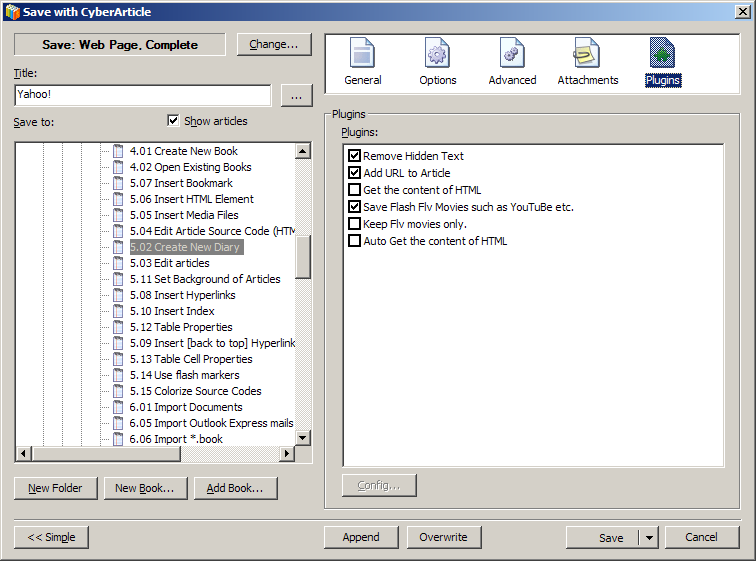
|
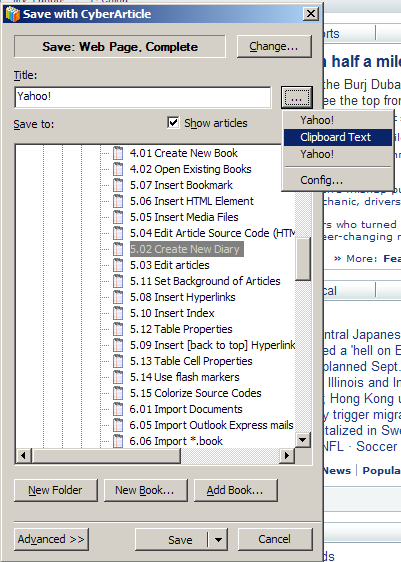
iWhen you save a webpage with CyberArticle, a save dialog window
will be pop up.
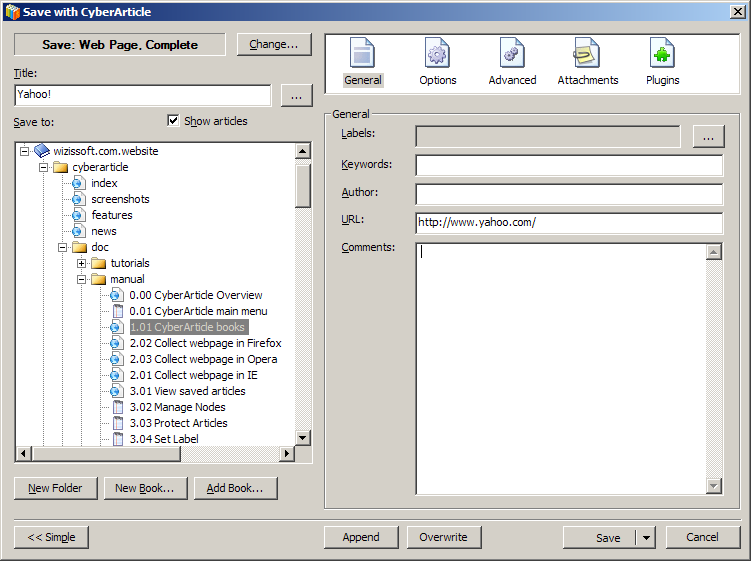
There are two modes for the saving, simple one and advanced one.
You can switch between the two modes through clicking
"Simple"/"Advanced" buttons at the left down corner.
Simple Mode:
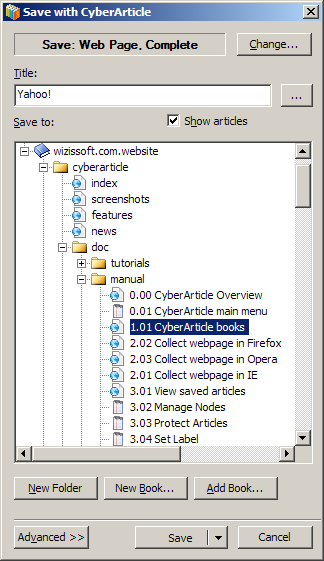
Advanced Mode:
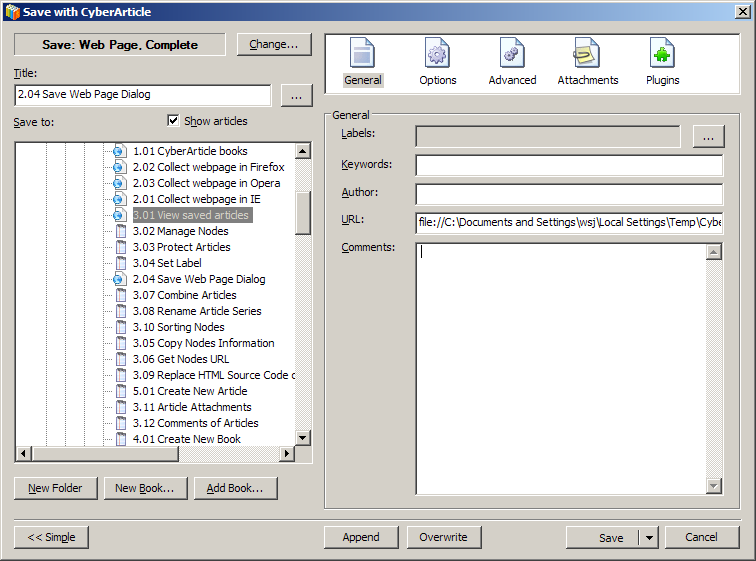
Some contents can be saved only through advanced mode.
Select the contents to be saved
You can select what kind of contents need to be saved, such as webpages,
text, images & etc, in the save dialog window through
clicking "Change" button, and then a popup menu will be displayed as
follows:
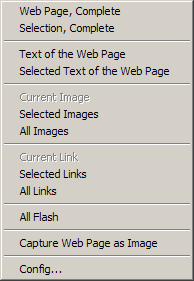
- Webpage, Complete : Save the webpage completely;
- Selection, Complete: Save the selected part of the webpage, including
all formats of contents;
- Text of the Webpage: Save only the text of the webpage;
- Selected Text of the Webpage: Save the selected text of the webpage;
- Current Image: Save the current image on which you right clicked;
- Selected Images: Save the selected images of the webpage;
- All Images: Save all the images in the webpage;
- Current Link: Open the current link on which you right clicked and
save the webpage corresponding to the link;
- Selected Links: Open the links selected in the current webpage
and save the webpages corresponding to the links respectively;
- All Links: Open all the links in the current webpage and save all the
webpages corresponding to the links respectively;
- All Flashes: Save all the flashes in the current webpage;
- Capture Webpage as Image: Capture the current webpage and save it as
an image;
- Config: Config the related menu items shown in the IE right-click
menu.
Title
Set a title for the saved article.
Click "..." button for quickly setting a pre-defined title.
The first title is the default one from the webpage.
The second title is the text in the clipboard.
The third title is the selected text in the webpage.
By clicking "Config" button at the bottom of the menu, you can set the
default way for retrieving/generating the title of the article.
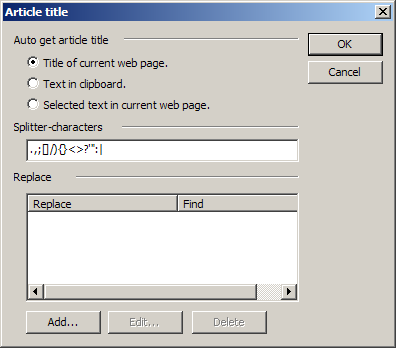
Auto get an article title from:
- the title of the current webpage;
- the text in the clipboard;
- the selected text in the current webpage.
Splitter characters: As the text selected
or retained in the clipboard may be too long, we need set some splitter
characters for gaining the first sentence automatically.
Replace: Replace some text extra repeatedly
appearing in the title with some other words or blank.
Select the save location
CyberArticle stores all the collected data in books. Therefore,
you need to choose a target book and a specific location in the book
for saving an article.
Select a book as well as a specific folder of the book in the save dialog
window. If you have not created your own book yet, CyberArticle
will automatically create a default one for you and present it here in the
save dialog window.
New Folder: Create a new folder in a book.
New Book: Create a new book.
Add Book: Add an existing book to the book list.
Set saving method
You can set whether the article to be saved will be attached to the end of
the previous article or not. By clicking "Change" button, you can also
attach the article to the end of any other articles.
General panel
General panel is used for defining some basic information of the
article when collecting webpage, text, images and flashes.
Labels: Set the label(s) for the article to be saved;
Keywords: Set the keywords for the article to be saved;
Author: Set the author's name of the article to be saved;
URL: Set the original URL of the article to be saved; You can
change it, or whatever, it won't affect the saving;
Comments: Set the comments about the article to be saved.
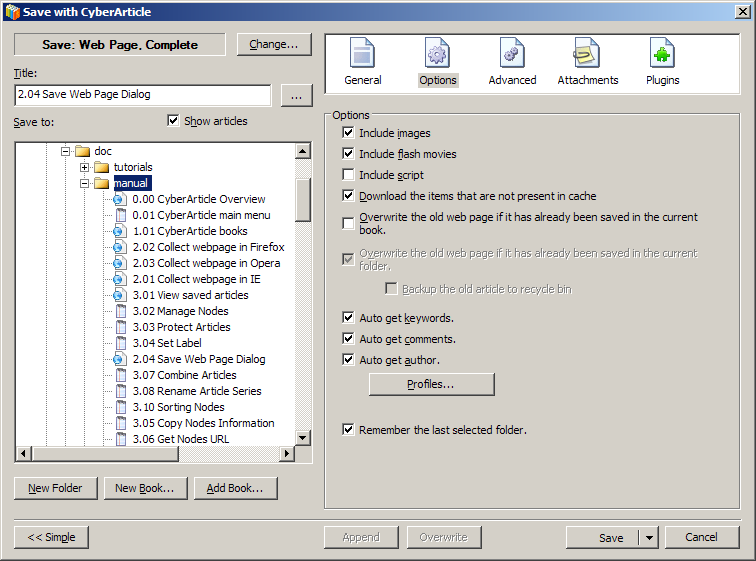
Options panel
The panel is used for filtering some elements of the target webpage to
be saved.
Include images: Set whether the images included in the target webpage will
be saved or not;
Include flash movies: Set whether the flash movies will be saved or
not;
Include script: Set whether the script(s) will be saved or not; Note: Saving
scripts may cause webpage error;
Download the items that are not present in cache: If this
option is enabled, CyberArticle will automatically download the files not
existing in the cache;
Auto get keywords: Automatically get the keywords from the webpage and save
them into the book;
Auto get comments: Automatically get the comments from the webpage and save
them into the book;
Auto get author: Automatically get the author's name of the article and save
it into the book.
Remember the last selected folder: Remember the last selected folder
Advanced panel
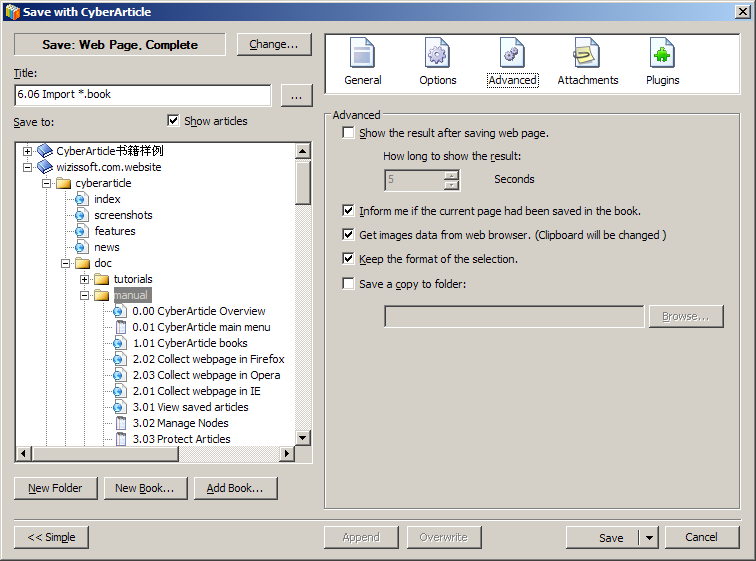
The panel is used for collecting webpages.
Inform me if the current page has been saved in the book: Checking
this option will inform you if an article has been saved in the
current book;
Get images data from web browser (Clipboard will be changed): Having this
option enabled can increase the successful rate of saving
images, however the clipboard will be changed;
Keep the format of the selection: By this option, you can choose holding or
discarding the original format of the selected part of the webpage to be
saved.
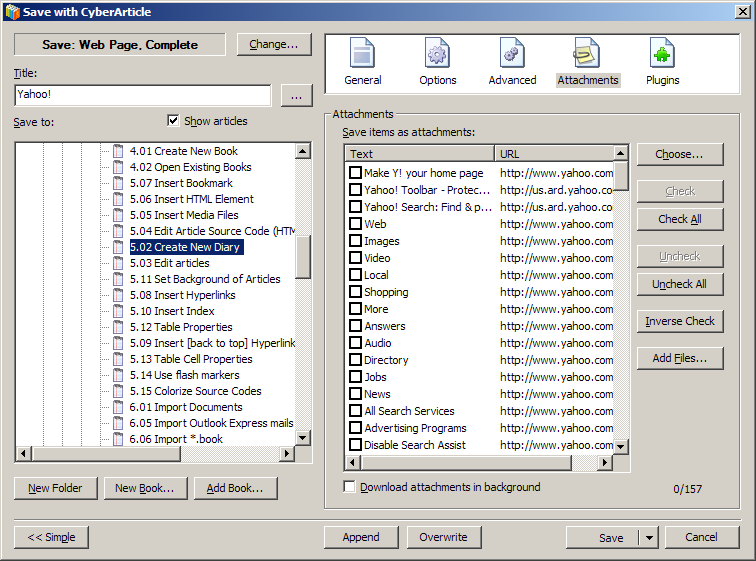
Attachments panel
The panel can be used for collecting webpages, text, images and
flashes.
Here are listed all the URLs. All the files corresponding to
the selected URLs will be saved as attachments.
By clicking "Add Files" button, you can directly add the local files on your
hard drive to the article as attachments.
Plugin panel
In the panel are listed all the available plugins for collecting webpage.
Remove Hidden Text: Some hidden text of the webpage can be
removed;
Add URL to Article: The source URL will be added to the
article when the article is collected;
Save flash flv movies, like Youtube & etc.: Flv
from YouTube & etc. can be saved.
Get the content of
HTML
Text panel
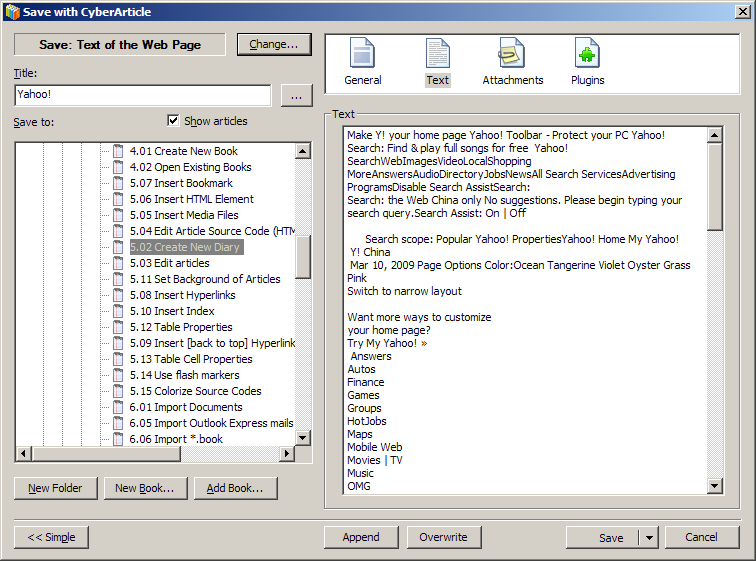
This panel can be used for collecting pure text.
Here in this frame, you can directly change the text to be saved.
Select images panel
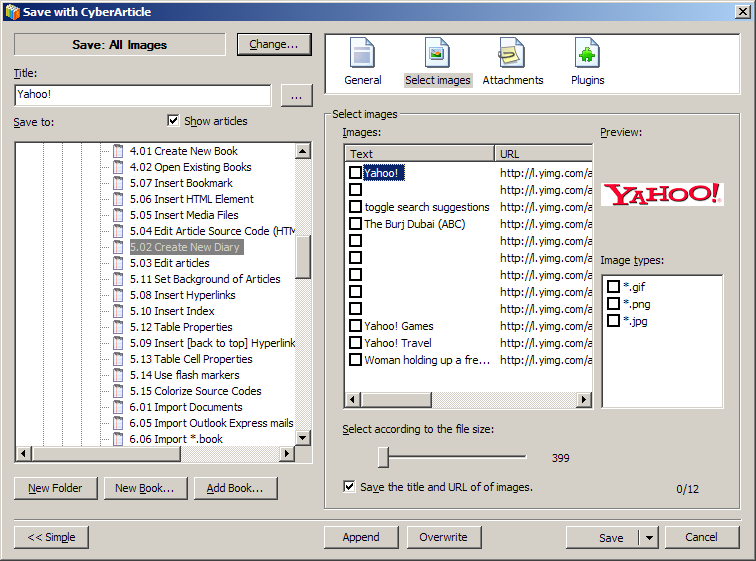
This panel is used for collecting images or capturing webpages
as images.
Images: Only the selected images will be
saved;
Select according to the file size: You can
select images with a certain size quickly through dragging
the slide block. Only those images larger than the defined value will be
saved.
Preview: Preview the current image. If the image is
not existing in the cache, the preview will be failed.
Image types: Select images on basis of their types
quickly.
Select links panel
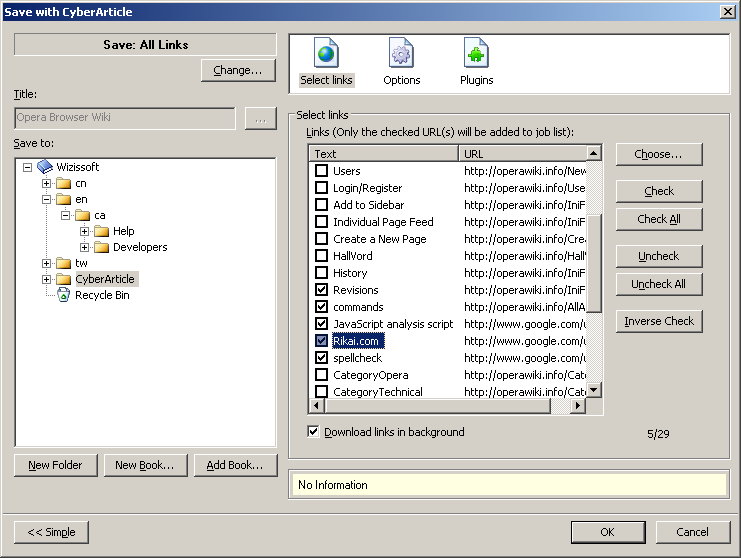
This panel is used for collecting links.
Only those selected URLs will be saved. CyberArticle will call Book Builder
to save the URLs.
Select flash panel
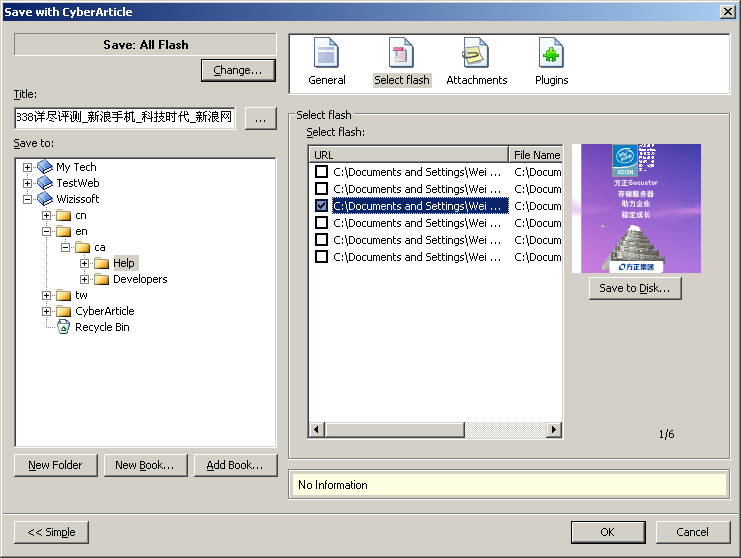
This panel is used for collecting flashes.
Only the selected flashes will be saved.
Save to: The selected flashes will be saved to the local
hard drive.
|